
Introduction
Recently, I've been working on migrating my blog's admin panel from Laravel Nova to Filament. As part of this migration, I wanted to add an indicator to the Filament app so that I could easily tell which environment I was currently in (e.g., local or production).
I'm sure we've all been in a situation where we thought we were in our local environment, but we were actually in production, and we nearly made a mistake that could have been catastrophic (I know I have)! As part of my precautions to avoid this, I like to have a visual indicator of the current environment for extra peace of mind.
I came across a handy "Environment Indicator" package by Dennis Koch that does exactly what I need and displays the current environment in my Filament dashboard.
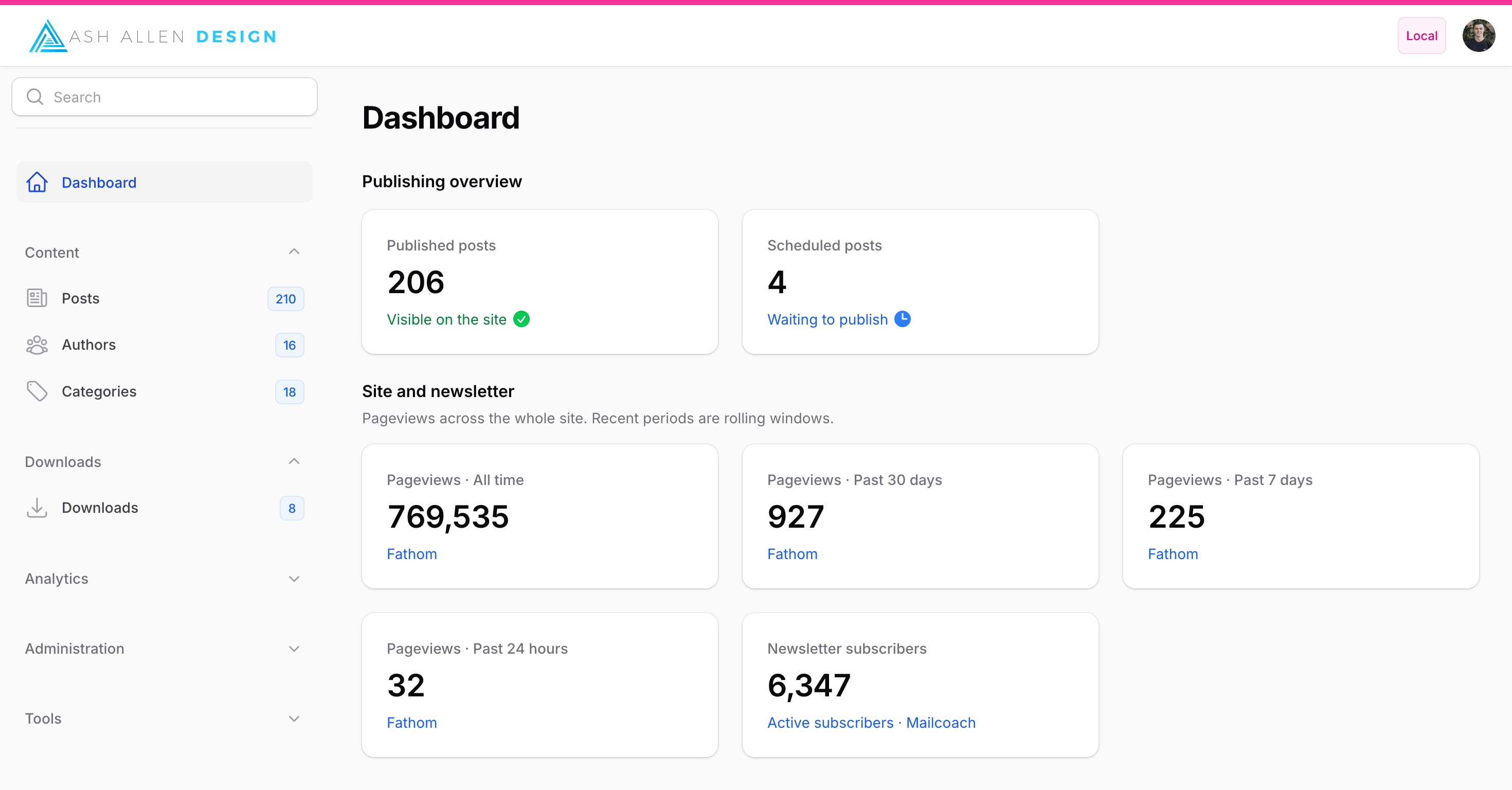
In the top-right corner of the screenshot, you can see the indicator displaying the current environment as "local":
At the time of writing this article, the package has over 1.8 million downloads and supports Filament 2, 3, 4, and 5.
In this article, we'll look at the package and how to use it in your own Filament dashboards to display the current environment. We'll also look at some of the package's customisation options.
Installation
To get started, you can install the package via Composer by running the following command:
1composer require pxlrbt/filament-environment-indicator
You then have to register the plugin in your panel provider class by passing EnvironmentIndicatorPlugin::make() to the plugins() method on the panel:
1use pxlrbt\FilamentEnvironmentIndicator\EnvironmentIndicatorPlugin;2 3$panel4 // ...5 ->plugins([6 EnvironmentIndicatorPlugin::make(),7 ]);
In my case, I have an App\Providers\Filament\AdminPanelProvider class which looks similar to this after registering the plugin:
App\Providers\Filament\AdminPanelProvider.php 1declare(strict_types=1); 2 3namespace App\Providers\Filament; 4 5use Filament\Panel; 6use Filament\PanelProvider; 7use pxlrbt\FilamentEnvironmentIndicator\EnvironmentIndicatorPlugin; 8 9final class AdminPanelProvider extends PanelProvider10{11 public function panel(Panel $panel): Panel12 {13 return $panel14 ->default()15 // ...16 ->plugins([17 EnvironmentIndicatorPlugin::make(),18 ]);19 }20}
That's it! The environment indicator will now be displayed in the Filament app.
Customising the Indicator
There are several options available to customise the indicator to your liking. Let's cover some of the options that I found most useful.
For a full list of the available options, check out the official docs on the GitHub repo.
Position
By default, the indicator appears in the top-right corner of the Filament app. However, you can customise its position if you'd prefer.
By default, the badge position is \Filament\View\PanelsRenderHook::GLOBAL_SEARCH_BEFORE if the panel has a top bar, and \Filament\View\PanelsRenderHook::SIDEBAR_LOGO_AFTER if the panel doesn't have a top bar.
You can override the position by passing either \Filament\View\PanelsRenderHook::GLOBAL_SEARCH_BEFORE or \Filament\View\PanelsRenderHook::SIDEBAR_LOGO_AFTER to the badgePosition() method on the plugin.
For example:
1use Filament\View\PanelsRenderHook;2use pxlrbt\FilamentEnvironmentIndicator\EnvironmentIndicatorPlugin;3 4$panel->plugins([5 EnvironmentIndicatorPlugin::make()6 ->badgePosition(PanelsRenderHook::GLOBAL_SEARCH_BEFORE)7]);
Colours
The package ships with some default colours for the indicator, but you can also customise them to your liking. You can do this by passing an array or Closure to the color() method provided by the package.
For example, if you wanted to display a red indicator for production, a green indicator for staging, and a blue indicator for any other environments, you could do something like this:
1use pxlrbt\FilamentEnvironmentIndicator\EnvironmentIndicatorPlugin; 2use Filament\Support\Colors\Color; 3 4$panel->plugins([ 5 EnvironmentIndicatorPlugin::make() 6 ->color(fn () => match (app()->environment()) { 7 'production' => Color::Red, 8 'staging' => Color::Green, 9 default => Color::Blue,10 })11]);
In this example, we're using a match expression to choose a colour based on the current environment.
Showing the Indicator in Production
By default, the indicator won't be displayed in production environments. In many cases, this is exactly what you want.
However, in my use case, I'm the only user who will be using the Filament dashboard, since I'm the only one making changes to the blog. Therefore, I'd like to see the indicator in all environments.
This will help me avoid accidentally making changes in production. To enable this, you can use the showBorder and showBadge methods to display the indicator in production:
1use pxlrbt\FilamentEnvironmentIndicator\EnvironmentIndicatorPlugin;2use Filament\Support\Colors\Color;3 4$panel->plugins([5 EnvironmentIndicatorPlugin::make()6 ->showBorder()7 ->showBadge()8]);
Both of the methods accept a boolean or Closure, so you can customise the logic to determine when to show the border and badge. If no value is passed, the border and badge will be shown in all environments.
Debug Mode Warning
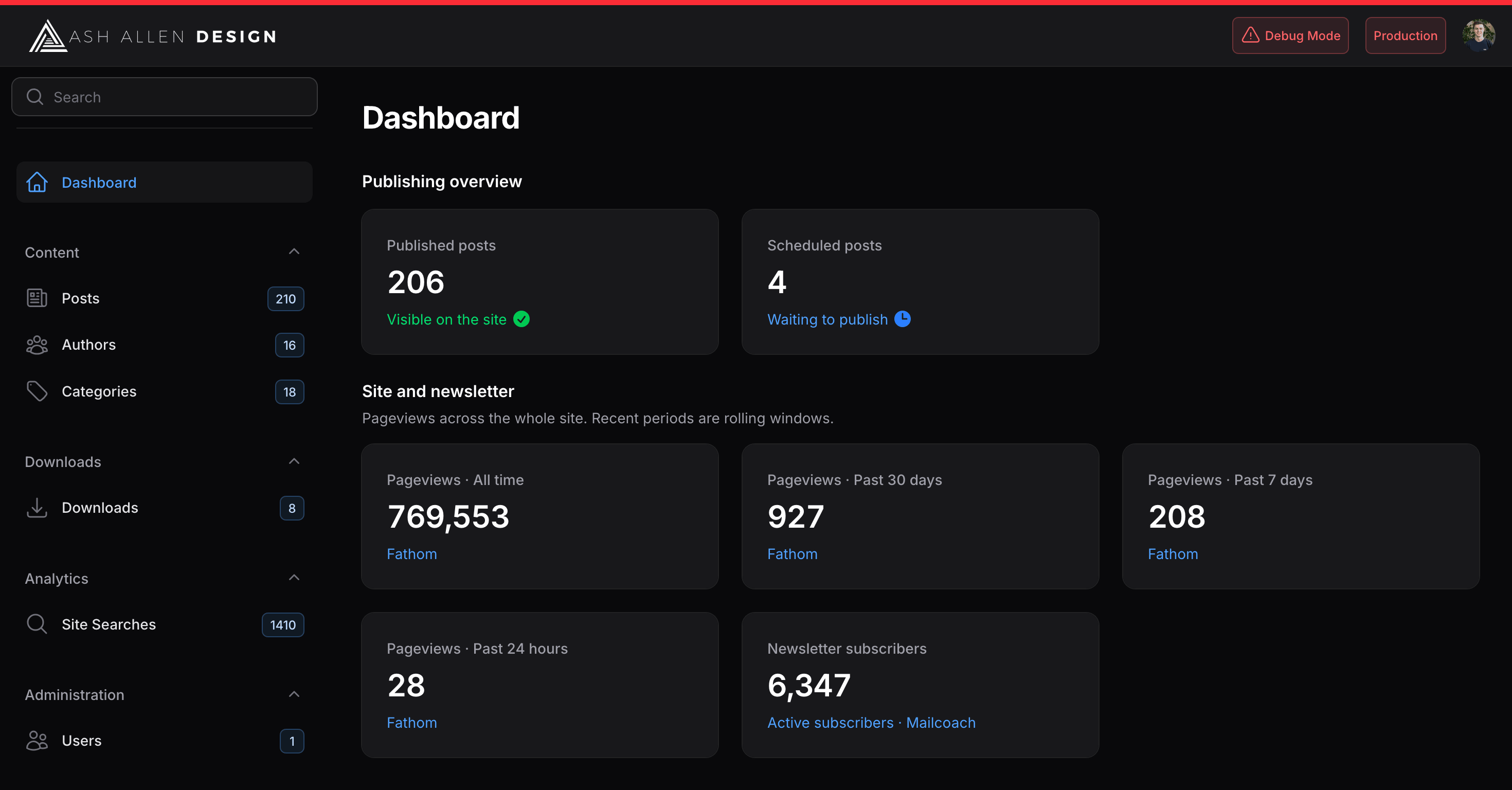
You can also enable a debug mode warning. This will display a warning badge if the app has debug mode (set via the APP_DEBUG environment variable) enabled while in production.
To do this, you can use the showDebugModeWarningInProduction() method on the plugin:
1namespace App\Providers\Filament; 2 3use Filament\Panel; 4use Filament\PanelProvider; 5use pxlrbt\FilamentEnvironmentIndicator\EnvironmentIndicatorPlugin; 6 7class AdminPanelProvider extends PanelProvider 8{ 9 public function panel(Panel $panel): Panel10 {11 return $panel12 // ...13 ->plugins([14 EnvironmentIndicatorPlugin::make()15 ->showDebugModeWarningInProduction(),16 ]);17 }18}
As well as the showDebugModeWarningInProduction() method, there is also a showDebugModeWarning() method if you want to show the warning in other environments too.
Like the other customisation methods, showDebugModeWarning() accepts a boolean or Closure, so you can customise the logic that determines when the warning is shown.
For example, you might want to show the warning if the environment is production or staging, but not local. For example:
1use Filament\Panel;2use Filament\PanelProvider;3use pxlrbt\FilamentEnvironmentIndicator\EnvironmentIndicatorPlugin;4 5EnvironmentIndicatorPlugin::make()6 ->showDebugModeWarning(fn () => app()->environment(['production', 'staging']));
In this screenshot, we can see the debug mode warning being displayed in the top-right corner of the Filament dashboard:
As a side note, you may also be interested in checking out my guide on validating your Laravel app's config so you can catch any misconfigurations before they make it to production.
Displaying Git Information
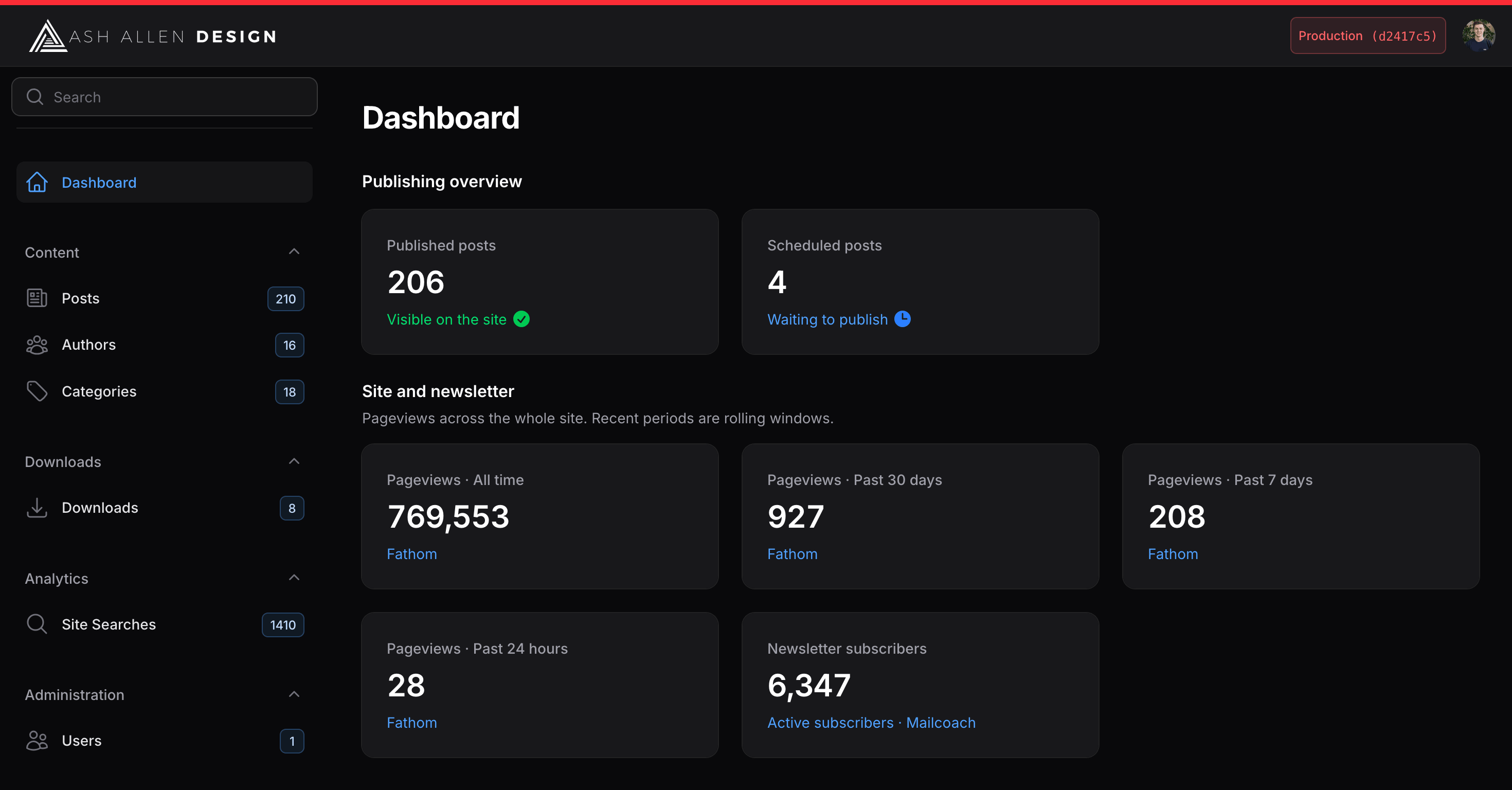
As well as displaying the current environment, the package can also display Git information in the badge. This can be handy for knowing which version of your app you're currently using. For example, you might want to check that you're running the latest commit after deploying your app.
There are a couple of methods you can use to display this information:
showGitBranch()- Display the current Git branch.showGitInfo()- Pass a Closure to customise the Git information displayed in the badge.
The Closure passed to showGitInfo() receives a pxlrbt\FilamentEnvironmentIndicator\GitInfo object, which provides the following methods:
branch()- Get the current branch name.tag()- Get the current Git tag.hash()- Get the short commit hash.
For example, if you wanted to display the current commit hash, you could do something like this:
1use pxlrbt\FilamentEnvironmentIndicator\EnvironmentIndicatorPlugin;2use pxlrbt\FilamentEnvironmentIndicator\GitInfo;3 4$panel->plugins([5 EnvironmentIndicatorPlugin::make()6 ->showGitInfo(fn (GitInfo $git) => $git->hash() ?? 'Unknown commit'),7]);
The Git lookup methods return null if the information isn't available, so we've added a fallback in the example above using the "null coalescing operator (??)".
In this screenshot, we can see the current commit hash being displayed alongside the environment in the top-right corner of the Filament dashboard:
Conclusion
Hopefully, this article has given you a quick insight into the pxlrbt/filament-environment-indicator package and how it can help you display the current environment in your Filament app.
If you enjoyed reading this post, I'd love to hear about it. Likewise, if you have any feedback to improve the future ones, I'd also love to hear that too.
You might also be interested in checking out my 220+ page ebook "Battle Ready Laravel" which covers similar topics in more depth.
Or, you might want to check out my other 440+ page ebook "Consuming APIs in Laravel" which teaches you how to use Laravel to consume APIs from other services.
If you're interested in getting updated each time I publish a new post, feel free to sign up for my newsletter below.
Keep on building awesome stuff! 🚀